
So You Want to Build an App
Have you tried to build an app but all you got was slop?
This article is going to show you how to build a simple app and deploy it.
We’ve all been there.
You want to build an app but failed miserably after spending hours describing your app to ChatGPT or Gemini.
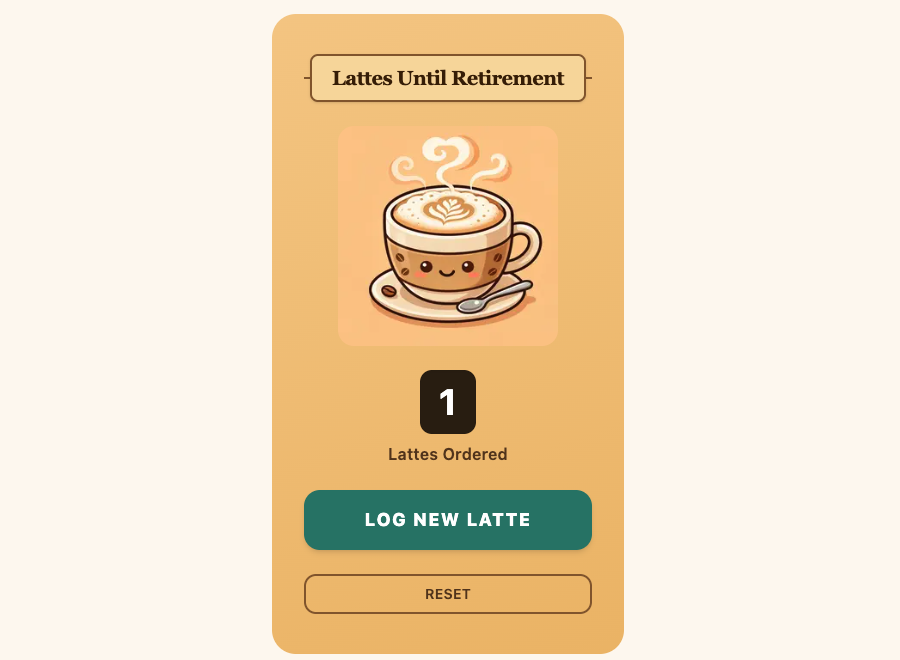
I got a random text from my friend who tried to build an app with Gemini but couldn’t get it work.
I took her description of the app and got a working app in no time.
I built and deployed it in less than 30 minutes.
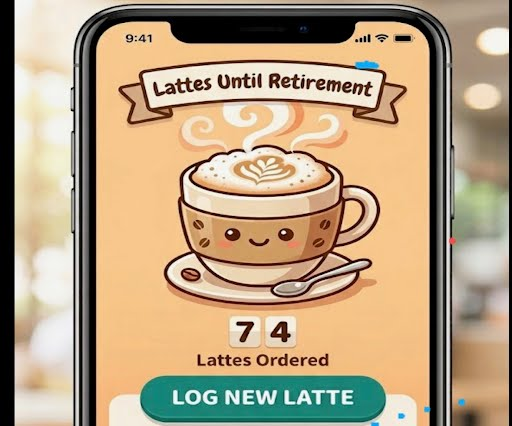
You can find the app here: https://www.linnalihe.com/tools/latte-counter
What is the Secret
The main difference is the AI model that we used.
She used the latest Google Gemini model and I used Claude Code.
You probably heard people tell you that anyone can build apps nowadays
You’ve probably seen ads by AI companies telling that you can build an app in an afternoon if you use their model.
They’re not wrong to say that you can build an app in an afternoon, but it really depends on the model you use.
To build an actual working app instead of a Frankenstein mash up AI hallucinated junk, you will have to spend a little bit of money. Not much, just $20 and you can build more than one app.
Based on what I’ve tried so far (and my experience is limited), I’ve had the most success with Anthropic’s Claude model.
I wish I can say the same for Google Gemini. I really do want to use it more especially because it’s free. But Claude just wins by miles.
Picking the AI for the Job
Here I have to recommend Anthropic’s Claude because their models have consistently delivered positive results for me.
I’ve mentioned Claude multiple times in this article as well as other posts I’ve written on this blog because I use it on a regular basis to help me write code, debug code, and answer technical questions that I don’t want to spend hours researching.
I’ve tried Gemini but it’s crashed multiple times.
And since Claude does everything I need for now, I haven’t felt the need to pay to use OpenAI’s Codex or to use Cursor.
Including Enough Details in Your Prompt
You could technically just provide Claude with a couple of sentences describing your app and it’ll build something that works.
But there is a better and more guaranteed way to build apps that work on the first build.
You can think of it as the same process as hiring a human software engineer to help you build your app.
You’re only sure that they will build that app that you have in mind if you describe it in enough detail.
Although it helps, you don’t necessarily need to know computer science concepts. You just need to be willing to have a long, long conversation with your AI software developer.
Explain what you want to build and include the following information:
- what problem the app is intended to solve and how it solves the problem
- why you’re building it
- how the user should feel emotionally interacting with it (calm, excited, or productive, etc)
- what the app should look like, preferably provide some images as examples
- describe all the screens that you can think of
- some example apps that your app takes inspiration from
- describe the coding language and the framework to use or ask the AI to give you it’s recommendation based the description you’ve already provided
- ask it to keep asking you questions until it’s 95% sure on the product requirements
The above information can all be one ONE prompt to the AI.
This will initiate a conversation where the AI will start asking you questions. There might be a lot of questions. Be patient and keep answering. If you don’t know the answers yet, just say you don’t know or ask the AI for it’s recommendations.
You can have write code and build things to show you examples and it’s interpretation of what you’re asking for.
At the end of the conversation, ask for a downloadable Product Requirements Document that you can give to Claude Code.
Download it and put it in a folder on your computer.
Open Claude Code in that folder and ask it to build the app based on the product requirement document.
You’ll be surprised by how good the quality is.
Even if the first shot is not good you just have to ask it to fix the issues. Claude will eventually give you a very decent working app.
Making your App Available
You know how the saying goes. If you don’t share it, it doesn’t exist.
To put it up on the internet for everyone to see, the easiest choice is Vercel.
I can’t say that it’s the cheapest in the long run but it’s free to start and indefinitely free if you don’t many users.
I can’t say that it’s the easiest to you but all I had to do was press a few buttons and my app was available for everyone.
I’m sure there are better platforms but Vercel go the job done for me as a beginner to deploying my own apps so I didn’t bother researching hosting with other providers (for now).
All you have to do is create an account with Vercel and ask your AI to give you all the steps. You can even ask your AI to do all the work and execute all the steps for you.
Here are the steps I followed:
I made sure that the app looked ok locally when I ran it.
Then I pushed it up to my GitHub repo.
I created a Vercel account
Next I installed Vercel’s CLI tool via the terminal and ran vercel --prod
You’ll be prompted to provide your credentials to log in to your account.
After you see that your code is on GitHub as well as on Vercel, go through Vercel’s dashboard and connect to your repository. Give it access to the GitHub repo.
Once access is given, every time you push updated code to your GitHub repo, the new version will be automatically deployed and be available for the public.
On Vercel’s platform you can also give your app a custom domain name if you want to buy one. You can find my technical nextJS blog that I’ve deployed on Vercel at https://linnalihe.com.