Learn how to use Canva with AI because the default is that every trip ends the same way.
You come home with 600 photos, maybe 2000 if it was a good one.
You scroll through them once, feel proud of yourself for a moment, and then they sit in your camera roll forever doing absolutely nothing.
Do you ever think about what you’re going to do with that ever growing camera roll on your phone? And how 99% of the photos are never used?
Just like you, I like taking photos when I go on trips. I have 5000 from my last trip to Japan.
I had grand plans to create a photo album and share them with my friends and family.
But life got busy and I haven’t looked at the photos since that ONE time after getting home from vacation.
I have over 25,000 photos and 2800 videos that’s just been sitting on a hard drive. My adventures in Japan, Portugal, a road trip from Vegas to the Grand Canyons, all locked away.
Until…
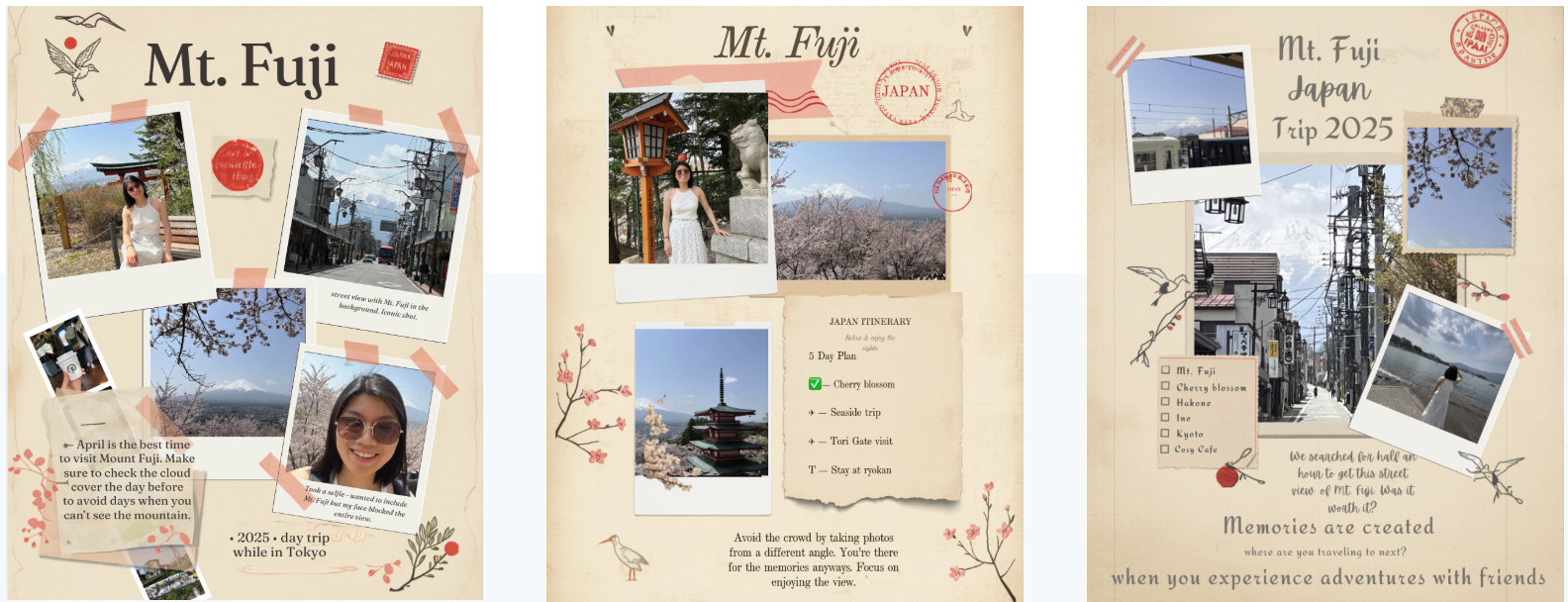
I found a workflow using AI, specifically Anthropic’s Claude connected directly to Canva that will do all the work of creating scrapbook templates and generating the sharable image from the templates with your photos.
It takes less than 10 minutes.
I don’t need to know any photo editing skill, I don’t even need to know how to use Canva.
All I have to do is upload the photos I want to use and let AI create a polished instagram post or a photobook page that I can share on social media or privately with friends.
This post walks through exactly how it works, the prompts I use, and where most people get stuck.
What Is Claude’s Canva Integration and How Does It Work?
Claude is an AI assistant made by Anthropic. It has a native integration with Canva, meaning you can connect your Canva account to Claude through claude.ai and then ask Claude to create, edit, and manage designs directly — without leaving the chat.
Just give Claude a screenshot of a scrapbook page or collage and it’ll build you a template for your photos.
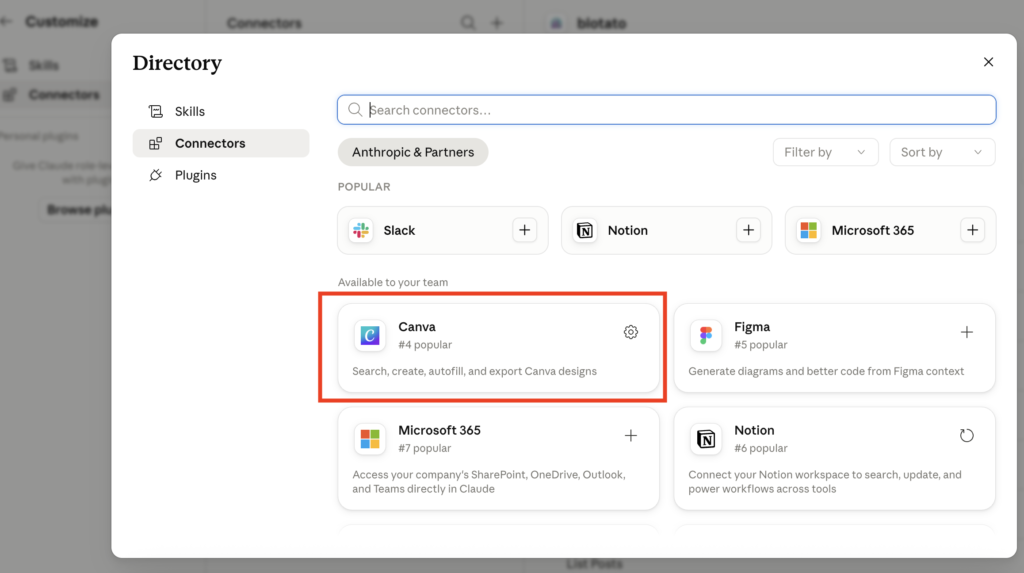
To connect Claude to Canva:
- Go to claude.ai
- On the left sidebar go to “Customize” > “Connectors”
- Find Canva and connect your account
- That’s it — Claude can now create and edit designs in your Canva library
The whole setup takes about two minutes. No API keys, no code, no subscriptions beyond what you already have.
Why Picking Canva Templates Manually Is A Waste Of Time
At first I tried to pick from pre-made template on Canva but quickly realized that the templates required photos that are framed a certain way or had a particular color palette.
I spent hours trying to get my photos to work with the templates thinking that using a template is already saving me a bunch of time.
But it turns out it’s easier to create a template from scratch that works with your photos.
But when I say “scratch”, I mean that Claude AI will create it for you in less than 3 minutes.
The problem isn’t the templates. The problem is that I was trying to fit my photos into a template rather than using a template that highlights my photos. My workflow was backwards.
Start from your vision for how to showcase your trip and have the template built around it.
You describe the aesthetic of your trip including the colors, the mood, the layout style you’re imagining, include a couple of screenshots of images that fit this vibe and Claude will build a custom template tailored to your photos.
How to Use Canva with AI to Create Templates
This is the core workflow. It works for any trip and any aesthetic, the most important things is to give examples.
Step 1: Pick your photos
Go through your photos and pick out the ones that you want to use.
Put them all into a folder and name the folder something that makes sense to you and upload them into canva.
The naming convention I go with is {description}-{date-photos-were-taken}
Step 2: Describe what you want to AI (Claude)
Vague prompts produce generic designs. Spend a few minutes thinking about what your trip actually looked like:
- Color palette should be warm golden tones? Muted earthy greens and browns? Bright saturated blues?
- Mood is chaotic and energetic city trip? Slow, quiet, nature-focused? Nostalgic and vintage-feeling?
- Layout feel clean and minimal? Layered scrapbook collage? Editorial, like a travel magazine?
- Special elements such as local motifs? Maps, stamps, ticket stubs, symbols and patterns?
Go on Pinterest, Instagram or other websites to find images that match what you’re looking for. Take a screenshot and provide it to Claude.
The more specific you are, the better the results are.
Step 3: Example are more important than the prompt
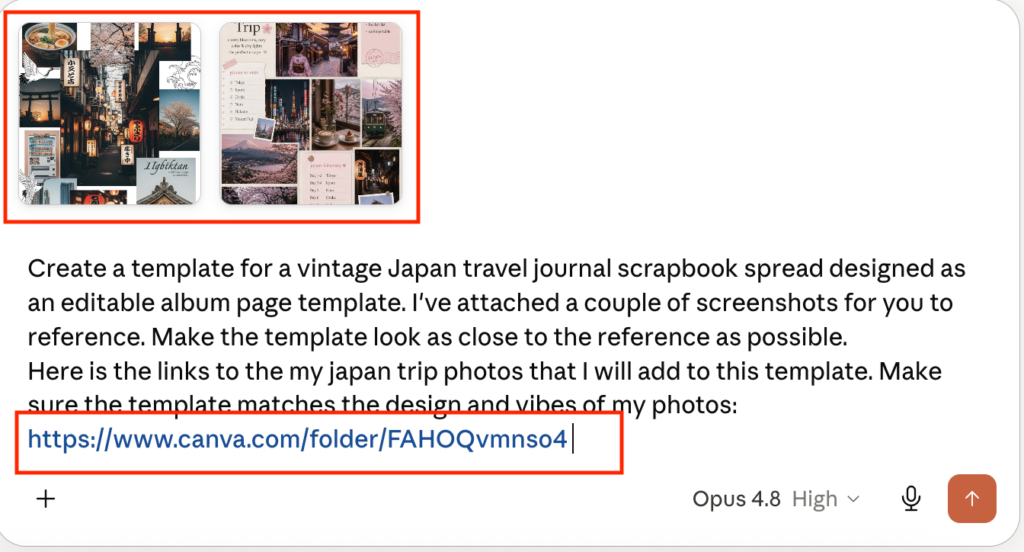
Here’s the exact prompt I used for a Japan trip scrapbook album page — use it as a template for your own:
Create a template for a vintage Japan travel journal scrapbook spread designed as an editable album page template. I've attached a couple of screenshots for you to reference. Make the template look as close to the reference as possible.

Here is the links to the my japan trip photos that I will add to this template. Make sure the template matches the design and vibes of my photos: {link-to-canva-folder-with-photos}
Step 4: Pick Your Favorites and Save Them to Canva
Claude will generate three or four design candidates. Pick one or two that you like and have claude regenerate more templates that are similar to the ones you like until you get templates that you’d like to use.
Open up the ones that you like to look at the full version. Opening it up in Canva will create it in your account for you to use in the future.
Step 5: Add Your Photos and have AI Build
This should be the easiest part.
Claude builds real Canva files (not flat images), every photo placeholder is a proper Canva image frame.
You drag your photo onto the frame, it clips automatically, you resize and reposition within the frame, done. No cropping in a separate app. No guessing aspect ratios.
You can go in and manually swap in the photos that you actually want to place in each section.
Claude would have already used your photos in the templates since you provided them but they might not be in the exact orientation and position that you want.
Or you can tell Claude to generate a few different versions using the template and the images you provided.
Update any placeholder text with your actual trip details such as dates, location names, and comments to finish up your page.
How to Use Canva with AI for Travel Instagram Carousel
Now that you have templates you can group them together for a multi-page post by asking Claude to group them together.
In the same chat you can use a prompt that sounds like this:
For a full multi-page album, use the templates you built to create:
- A title page with bold destination name, one hero photo placeholder, trip dates

- 3 Day spread pages with 3–4 photo placeholders, a date label, a notes block

- A highlights collage page  with 6–8 smaller photo frames, more decorative elements

Keep the theme consistent with the templates that are already created.

Once this muli-page album is created add it to my Canva account and provide me the link
The output is a fully designed, multi-page Instagram post template, editable in Canva, ready for a photo swap.
Because you asked Claude to base the design off of the templates it created initially, all the elements and styles will be consistent. Now all you have to do is schedule it.
Even scheduling can be handed off to Claude.
Full Workflow Summary: Canva with AI (Claude) for Content
Here’s the complete process from start to finish:
| What you’re making | Claude prompt focus | Canva output |
|---|---|---|
| Photo templates | Give screenshot examples and short description | Template with editable design |
| Instagram posts and carousels | In the same chat, have Claude give more variations and create a carousel post that combines multiple pages | Multi-page editable post |
The four-step process, every time:
- Define your aesthetic (colors, mood, layout style) and find examples
- Write a short prompt with a 2 to 3 example screenshots
- Pick your favorite candidate(s) and create more or re-create variations
- Open in Canva, swap photos and text, then export or directly publish
Why This Actually Works
Creating something from a blank page is always harder than starting from a template, especially a template that is created based on designs you want to re-create.
It’s not just about the time it saves you. It’s about getting you to a publishable result without racking your brain for design idea.
With Claude connect to Canva, you can collect inspiration while you’re doom scrolling, upload to Claude and have it create you templates that you can add your photos to by the time you land.
You’ll have templates ready to drop your photos into the moment you open your laptop at home.
You can start immediately by taking the photos from your most recent trip. Group them into a folder and find something on Pinterest that fits the vibe and have Claude get to work.
You will have a polished post in less than 10 minutes.
Frequently Asked Questions
Do I need to pay for anything extra to use Claude with Canva? You need a Claude account (claude.ai — free tier works for basic use but you’ll probably need Claude Pro which costs $20/month or $200/year ) and a Canva account (free tier supports this workflow). No additional tools or subscriptions required.
Can Claude edit an existing Canva design, or only create new ones? Both. You can paste a Canva design link into Claude and ask it to modify elements, add text, change colors, insert new graphic elements. Or you can ask it to create a new design.
What if I don’t like any of the design candidates Claude generates? Iterate on the prompt and give more examples. The important thing is to give screenshots or examples of existing templates that you want. Even getting a design half-way is a win. Go in and edit the design that Claude generates if you can’t get 100% what you want.
Does this work for video content, not just photos? At the moment, no. I have not been able to get Claude and Canva to create useable video templates or content.
Can I share the templates I make with other people? Yes. Any design Claude creates in your Canva account can be shared as a Canva template link — useful if you’re traveling with someone and want to both post with the same visual identity.
Does the Claude + Canva integration work on mobile? The Claude app (iOS and Android) supports the Canva integration, so YES, you can generate templates from your phone while you’re still on the trip.